


- Router,DrayOS 5
eSIM Setup on DrayOS 5 Routers
VI. Feature Setup
Some DrayTek cellular routers support eSIM on compatible hardware. The first model with this capability is the Vigor 2767ax-4G. If eSIM is supported on a router, it will be listed on the product specification page and the eSIM Profile option will be available in the WAN configuration menu.
eSIM allows the router to download and activate a mobile network profile without inserting a physical SIM card. Depending on the router hardware, more than one eSIM profile may be stored on the device.
This guide shows how to add an eSIM profile to a DrayOS 5 router and configure the cellular WAN interface to use it. The exact information supplied by the mobile provider may vary, but an eSIM profile typically requires an activation string in the format LPA:1$Address$ActivationCode. Some providers may also require a confirmation code. The Address is the SM-DP+ address used to download the profile, and the Activation Code identifies the eSIM profile to be installed.
eSIM Setup
Before starting, make sure you have the SM-DP+ Address and Activation Code from the mobile network provider. If the provider has supplied a confirmation code, keep that available as well.
The router must already have Internet access before the eSIM profile can be activated. For example, check that the router can reach an Internet host such as , this can be done by going to Diagnostics > Ping Diagnostics and using a hostname or IP address to test whether the connection can be reached.
This can be done by connecting the router through its DSL interface or through the WAN2 Ethernet port.
To add the eSIM profile, go to Configuration > WAN > eSIM Profile.
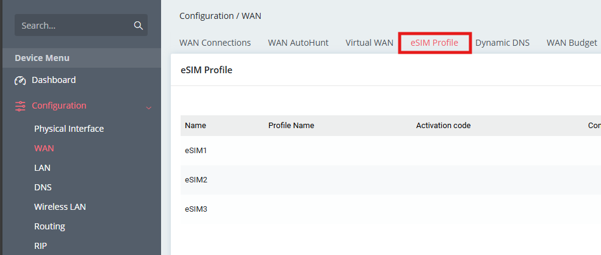
Select Edit for the eSIM profile entry that you want to configure.
Enter a profile name, the activation code, and the confirmation code if one has been supplied. If no confirmation code has been provided, leave the confirmation code field blank. The activation code should use this format: LPA:1$Address$ABCDEFAB12354678
Replace Address with the SM-DP+ Address and replace ABCDEFAB12354678 with the Activation Code provided by the mobile network operator. Keep the $ characters in the activation string.
Example activation strings may look similar to the following:
Vodafone: LPA:1$uuk-gto.prod.ondemandconnectivity.com$YABCDEFGABCDEFG
EE: LPA:1$ee.pr.go-esim.com$YABCDEFGABCDEFG
After the required details have been entered, the router will attempt to validate and download the eSIM profile.

When the profile stand the provider name and ICCID are displayed, the eSIM profile has been activated. If the status doesn’t show success please double check and ensure that the Activation code is correct and also that there is an active WAN connection.
Next, configure the cellular WAN interface to use the eSIM profile. Go to Configuration > WAN > WAN Connections, then select the LTE WAN interface that will use the eSIM profile. In the example shown, this is WAN5.
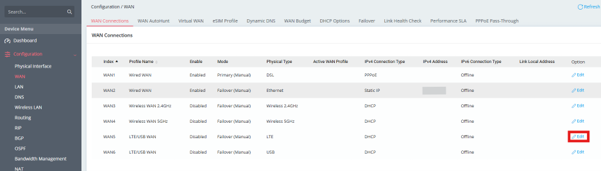
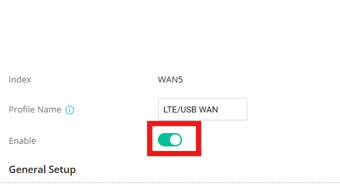
Select Edit for the LTE WAN interface, then enable the WAN interface if it is not already enabled.
Scroll to the eSIM settings section and select the configured profile from the eSIM Profile List drop-down menu.
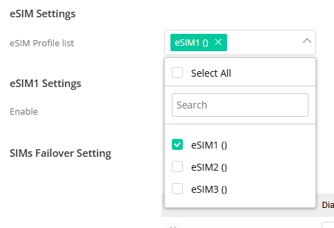
Enable eSIM for the selected cellular WAN profile.
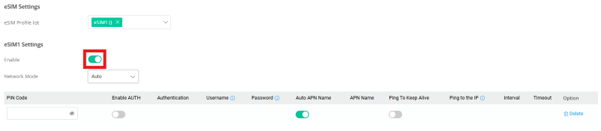
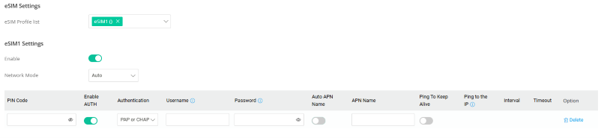
If required by the provider, enable authentication or disable Auto APN Name and enter the APN or authentication details supplied by the mobile network operator.
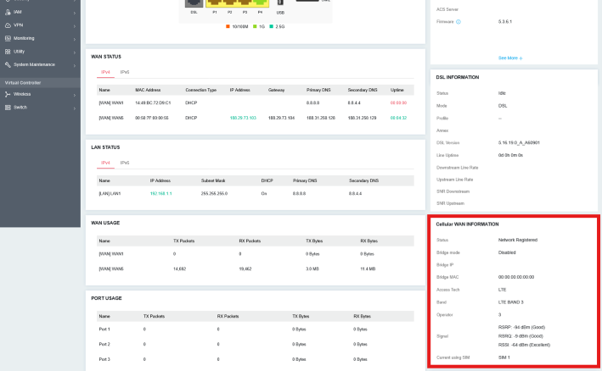
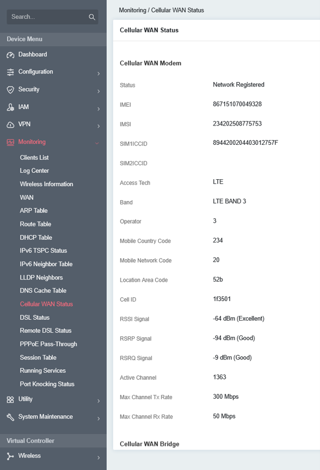
Once the eSIM profile and WAN settings have been configured, check the router Dashboard for LTE or Cellular WAN information. The cellular connection status can also be viewed from Monitoring > Cellular WAN Status. If it doesn’t go online, please check the logs on the router for any errors relating to the LTE connection.
Add a comment to this article
NOTE : All comments are reviewed before publication and may not be posted or may be redacted if the editors do not consider them helpful. The use of offensive or obscene language, copyrighted material, or advertising or promotion or linking to any other product or service is prohibited. By submitting your comment, you confirm that you are the original author and assign copyright of the content to DrayTek indefinitely and irrevocably.
