


- Router,DrayOS 5
How to Generate a Let's Encrypt SSL Certificate on DrayTek VigorACS
XIV. Miscellaneous Questions
DrayTek VigorACS supports integration with Let's Encrypt to generate and manage SSL certificates. This allows administrators to secure access to the VigorACS web management interface using an SSL certificate issued by a trusted Certificate Authority.
The Let's Encrypt integration can automatically create a private key, generate an SSL certificate and update the certificate keystore.
Prerequisites
Before starting, ensure that:
- You have system admin access to the VigorACS server’s web interface.
- You have a registered domain name pointing to the public IP address of your VigorACS server.
- The domain name is accessible and correctly configured in DNS.
- TCP port 80 must be allowed through the firewall protecting the VigorACS server. If the server is behind a firewall or NAT device, port 80 must be forwarded to the VigorACS server.
- The server must also have outbound internet connectivity to communicate with Let's Encrypt.
Important – Firewall and Port 80 Requirements
Let's Encrypt uses the HTTP-01 Challenge to verify ownership of the registered domain. This requires Let's Encrypt to establish an inbound HTTP connection to the VigorACS server over TCP port 80.
There are two options for managing port 80:
Option 1 – Automatic Certificate Renewal
- Leave TCP port 80 open through the firewall and forwarded to the VigorACS server.
- This allows VigorACS to complete the HTTP-01 validation process when automatically renewing the certificate.
- Auto Renew will not work if port 80 is blocked when the renewal takes place.
Option 2 – Manual Certificate Renewal
- If security policies do not permit port 80 to remain open permanently, it can be opened temporarily when certificate renewal is required.
- Administrators must then repeat the certificate generation process described in this guide.
- Once the certificate has been generated and ACS restarted, port 80 can be blocked again.
- Remember to repeat this process before the certificate expires.
Important: Enabling Auto Renew in VigorACS does not remove the requirement for port 80 to be accessible during certificate renewal. If port 80 is blocked, automatic renewal using HTTP-01 validation will fail.
Step 1. Access the Let's Encrypt configuration
Log in to the VigorACS WUI and go to System in the main menu.
- Select Certificate
- Open the Let's Encrypt tab.
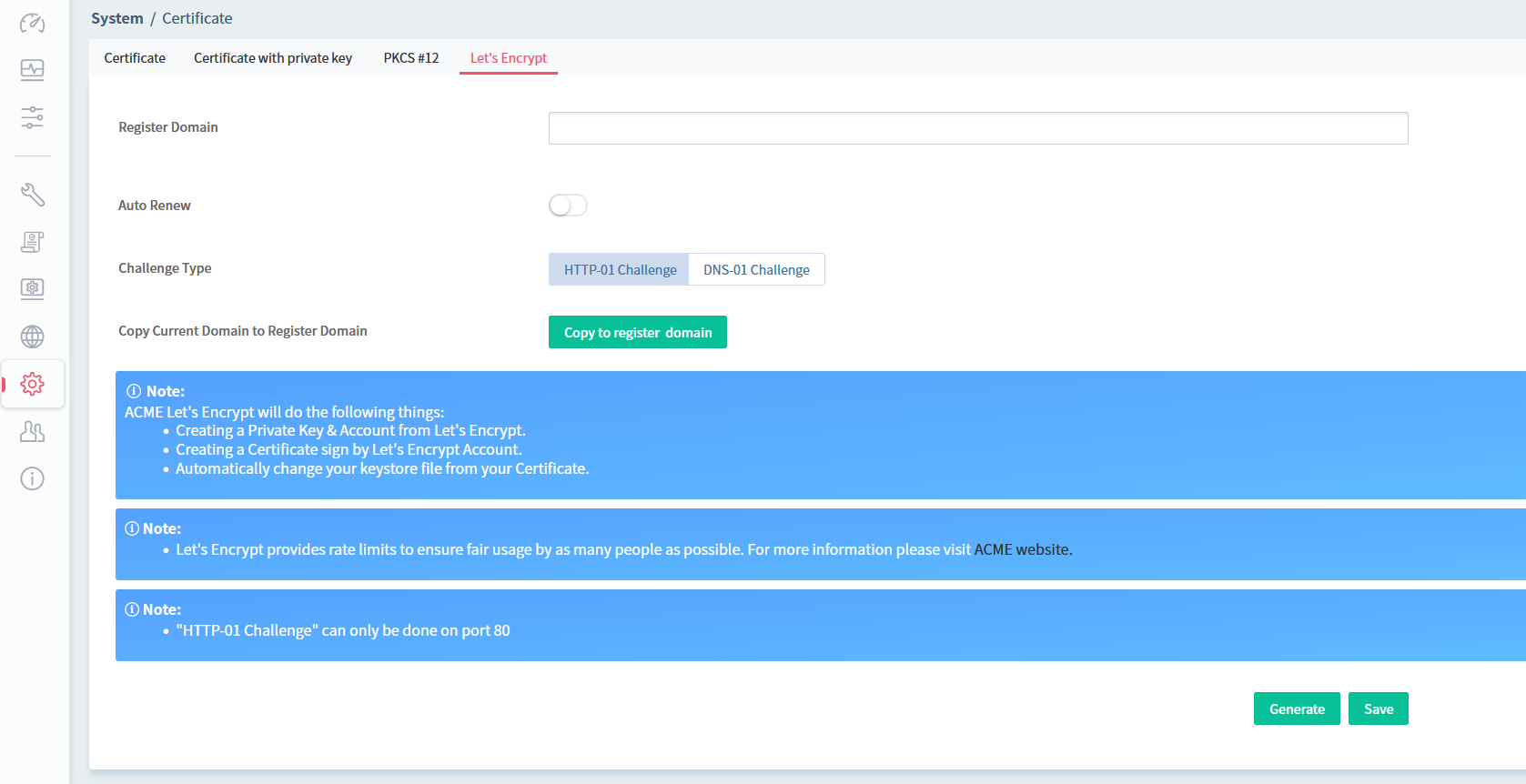
Step 2. Configure the Let's Encrypt settings
The Let's Encrypt configuration page contains several options that must be configured before generating the certificate.
a. Register Domain
- Enter the fully qualified domain name (FQDN) that will be used to access VigorACS.
b. Auto Renew
- Enable the Auto Renew option.
c. Challenge Type
- HTTP-01 Challenge: Select this option if the VigorACS server can be reached through HTTP on port 80.
d. Copy Current Domain to Register Domain
- Click Copy to register domain to populate the Register Domain field.
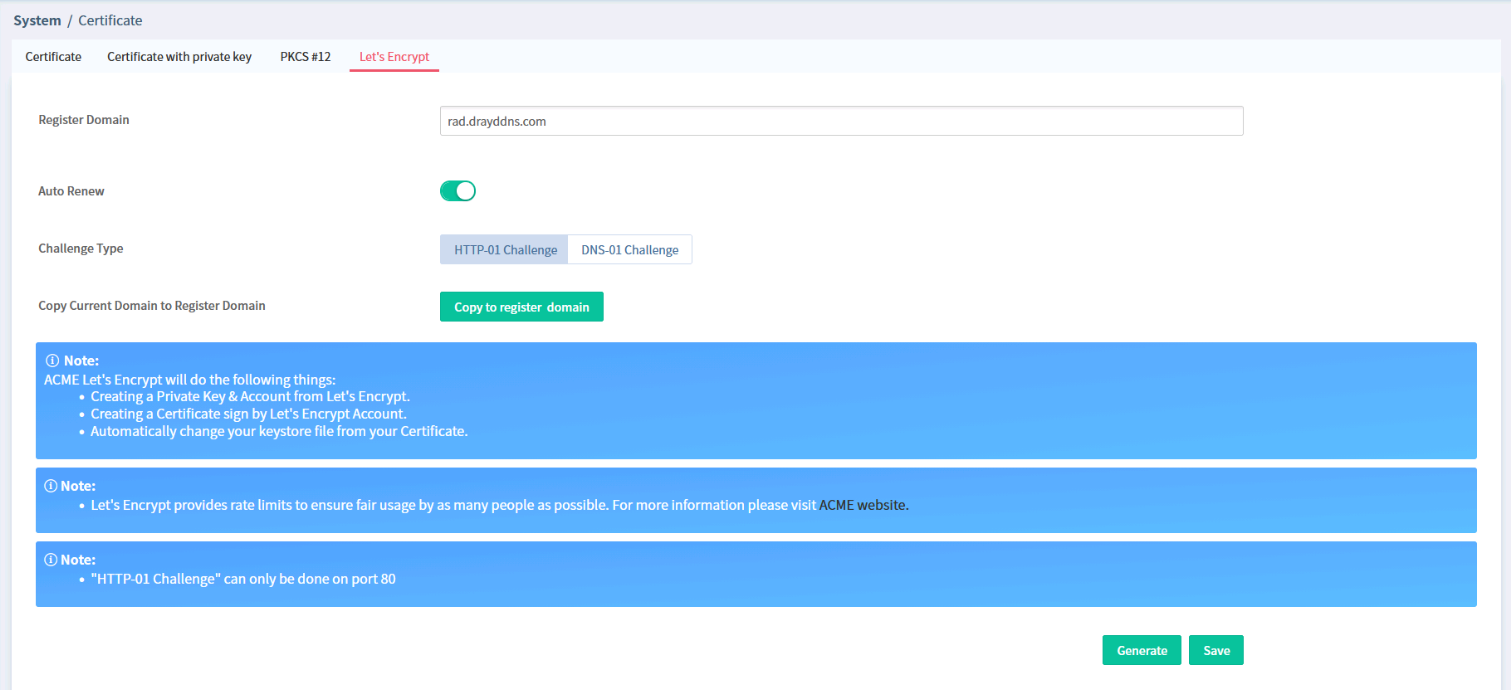
Step 3. Generate the certificate
Click Generate at the bottom-right of the page.
Wait for the certificate generation process to finish.
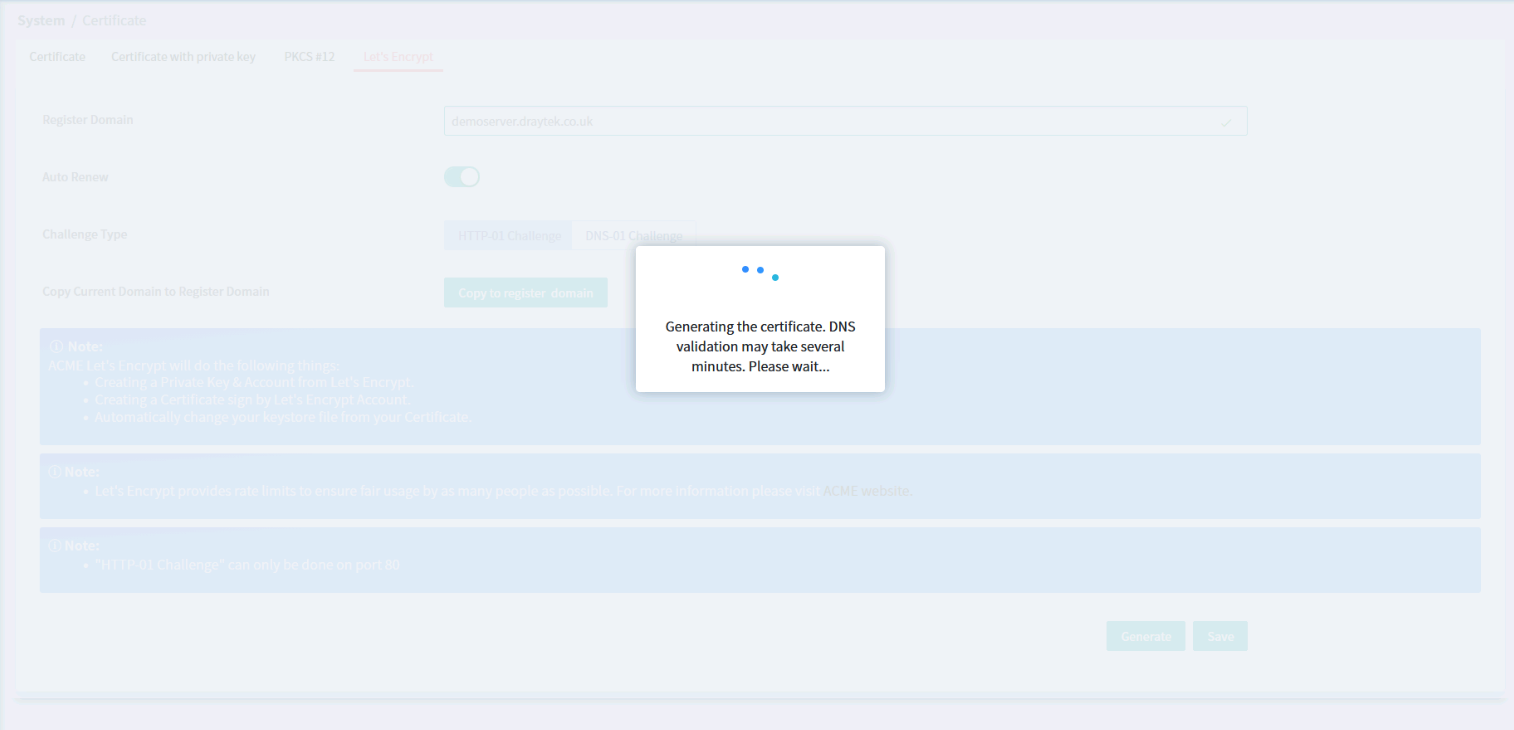
Step 4. Save the configuration and restart the server
Once certificate generation is complete, click Save and restart the server to update its certificate keystore.
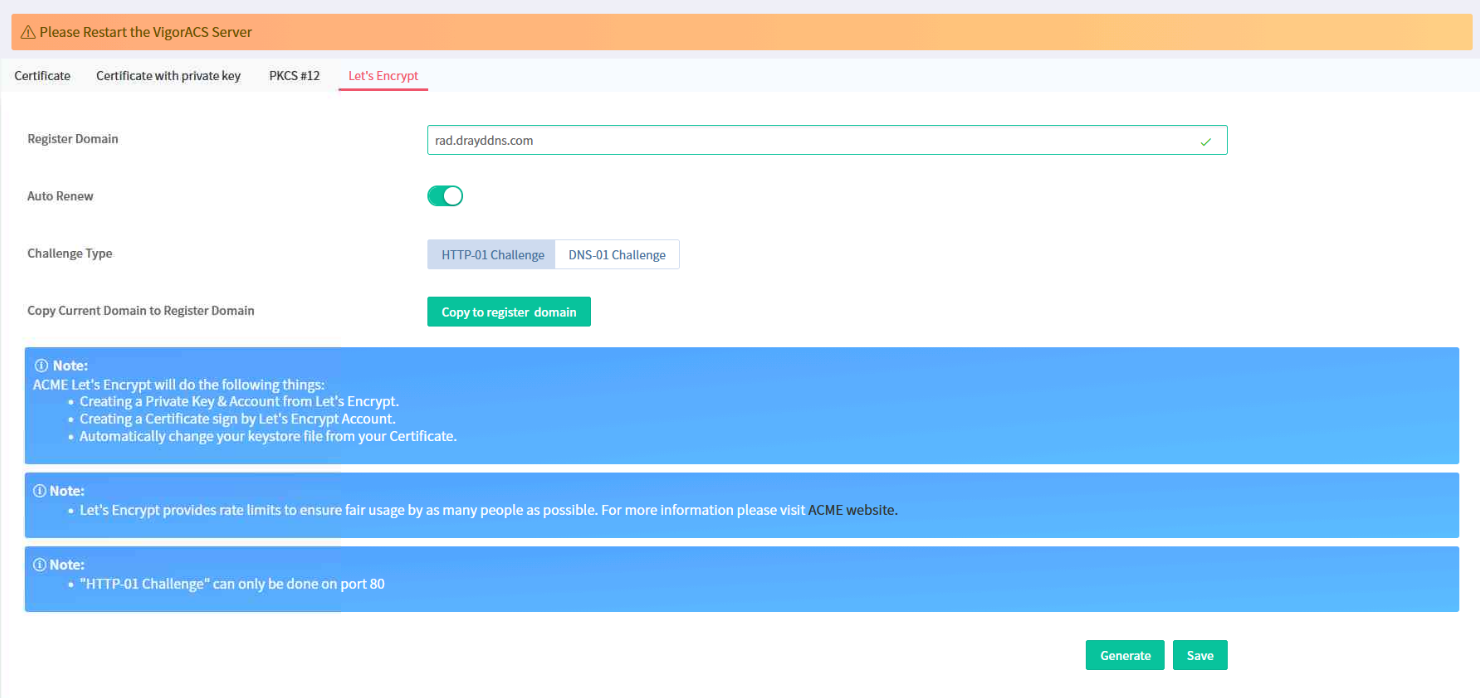
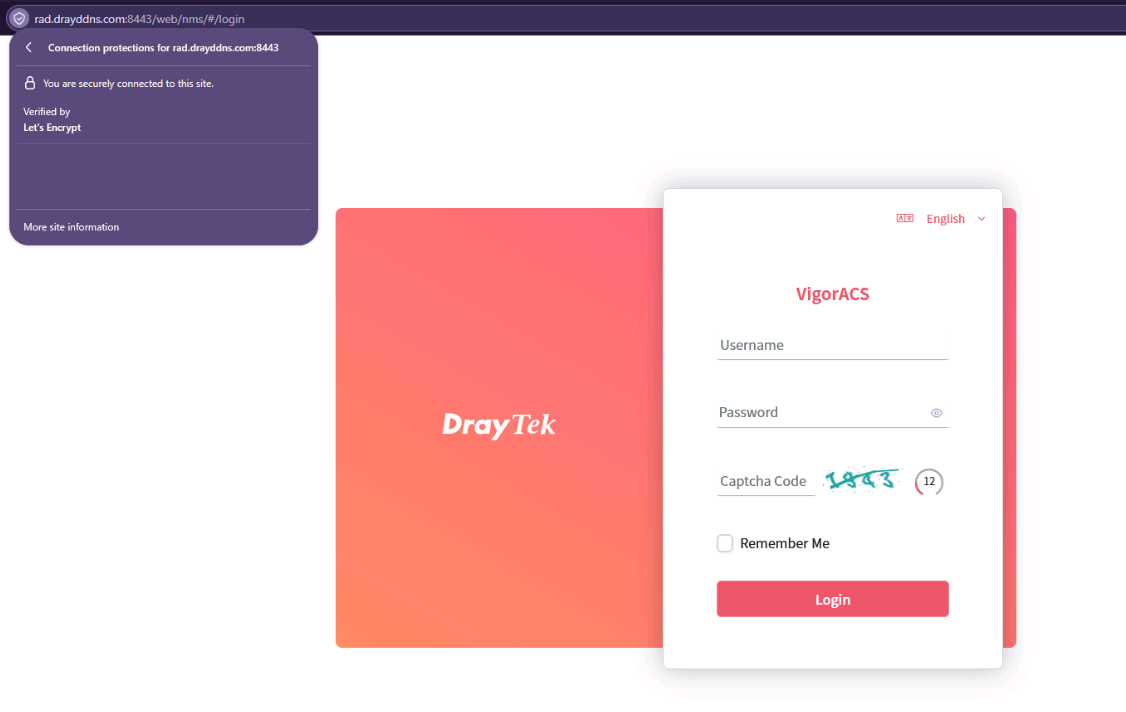
Step 5. Verify the certificate
After saving the configuration:
- Open the VigorACS web interface using the registered domain name.
- For example, navigate to https://rad.drayddns.com.
- Check the browser address bar for a valid HTTPS connection.
- View the certificate details in the browser to confirm:
- The certificate has been issued by Let's Encrypt.
- The certificate's domain name matches the registered domain.
- The certificate is within its validity period.
- The certificate is trusted by the browser.
Troubleshooting
If certificate generation fails, check the following:
- Confirm that the domain resolves correctly to the VigorACS server.
- Ensure inbound TCP port 80 is accessible from the internet.
- Check firewall rules and outbound connectivity.
Add a comment to this article
NOTE : All comments are reviewed before publication and may not be posted or may be redacted if the editors do not consider them helpful. The use of offensive or obscene language, copyrighted material, or advertising or promotion or linking to any other product or service is prohibited. By submitting your comment, you confirm that you are the original author and assign copyright of the content to DrayTek indefinitely and irrevocably.
