


- Router,DrayOS 5
VPN Matcher for DrayOS 5 Vigor Routers
I. Product Setup Guides
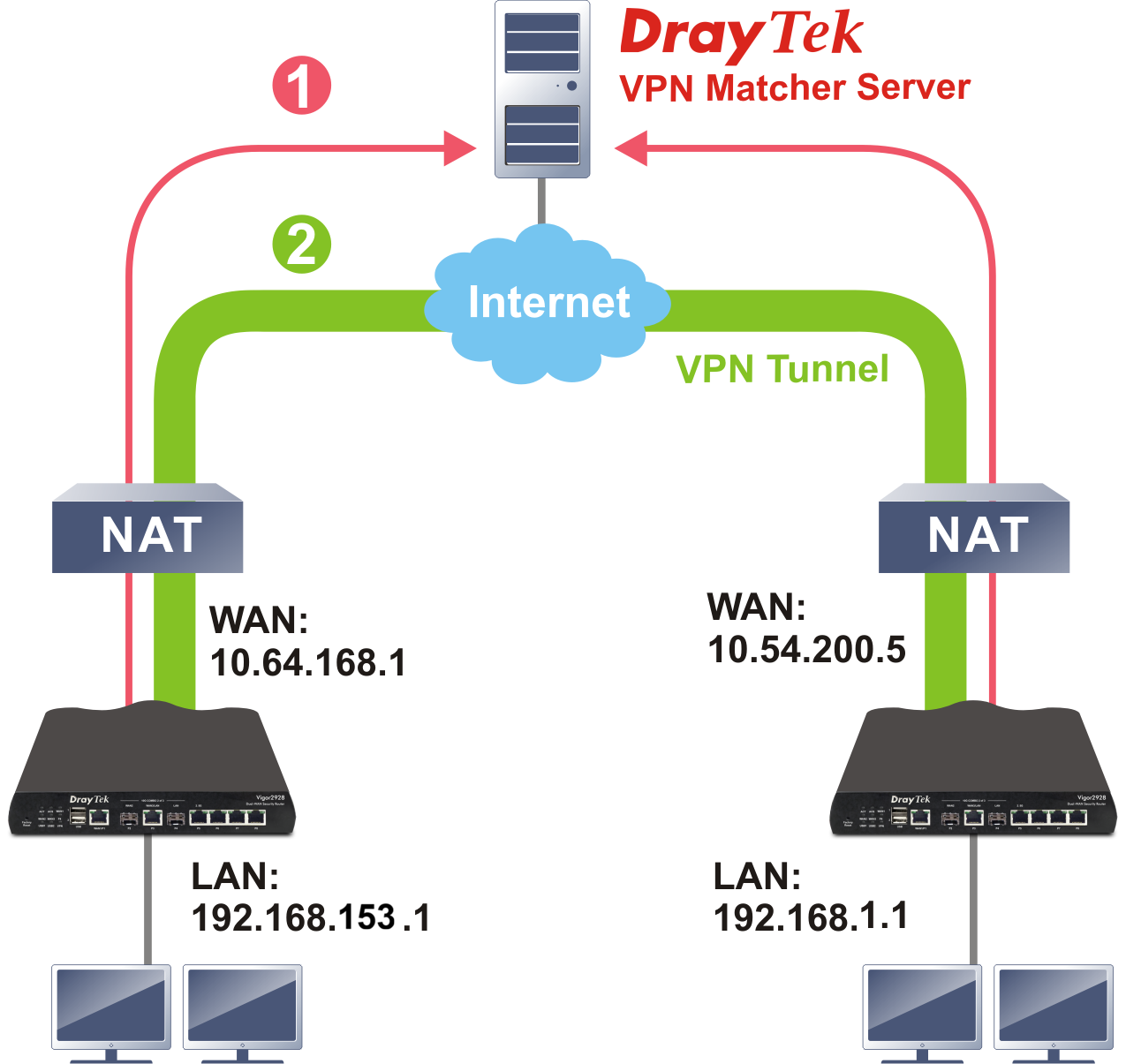
If your ISP only assigns a private IP address, setting up a traditional VPN can be challenging. DrayTek’s VPN Matcher is built specifically to address this issue. It works as a digital intermediary, allowing two routers to locate each other and establish a seamless connection through NAT. When paired with the modern WireGuard VPN protocol (supported on DrayOS 5, v5.3.8 and later), it delivers a faster and more stable connection even in complex network setups. Below, we’ll demonstrate how to easily set up a VPN connection between two Vigor2928 routers using this approach.
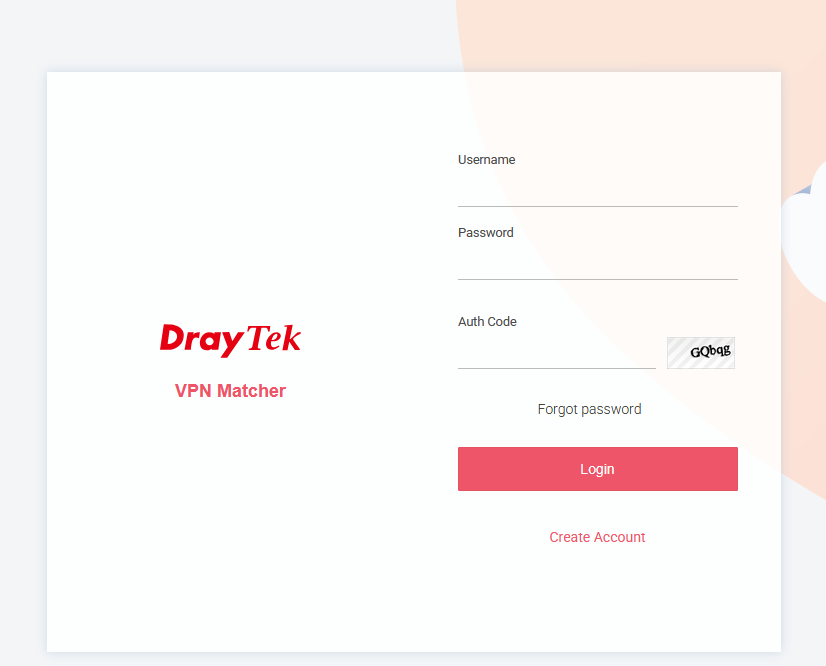
- Create a VPN Matcher account at https://vpn-matcher.draytek.com/ and complete the activation process.
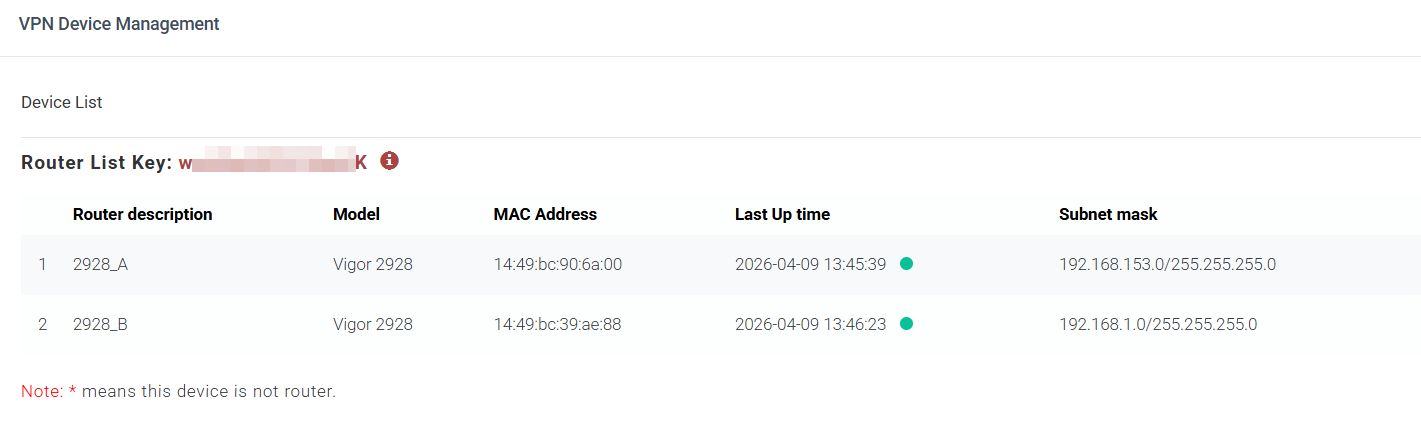
- Add DrayTek routers to the VPN Matcher server by:
- Opening the Add Device section in the VPN Matcher interface.
- Register each device by entering its MAC address and model name for DrayTek routers.
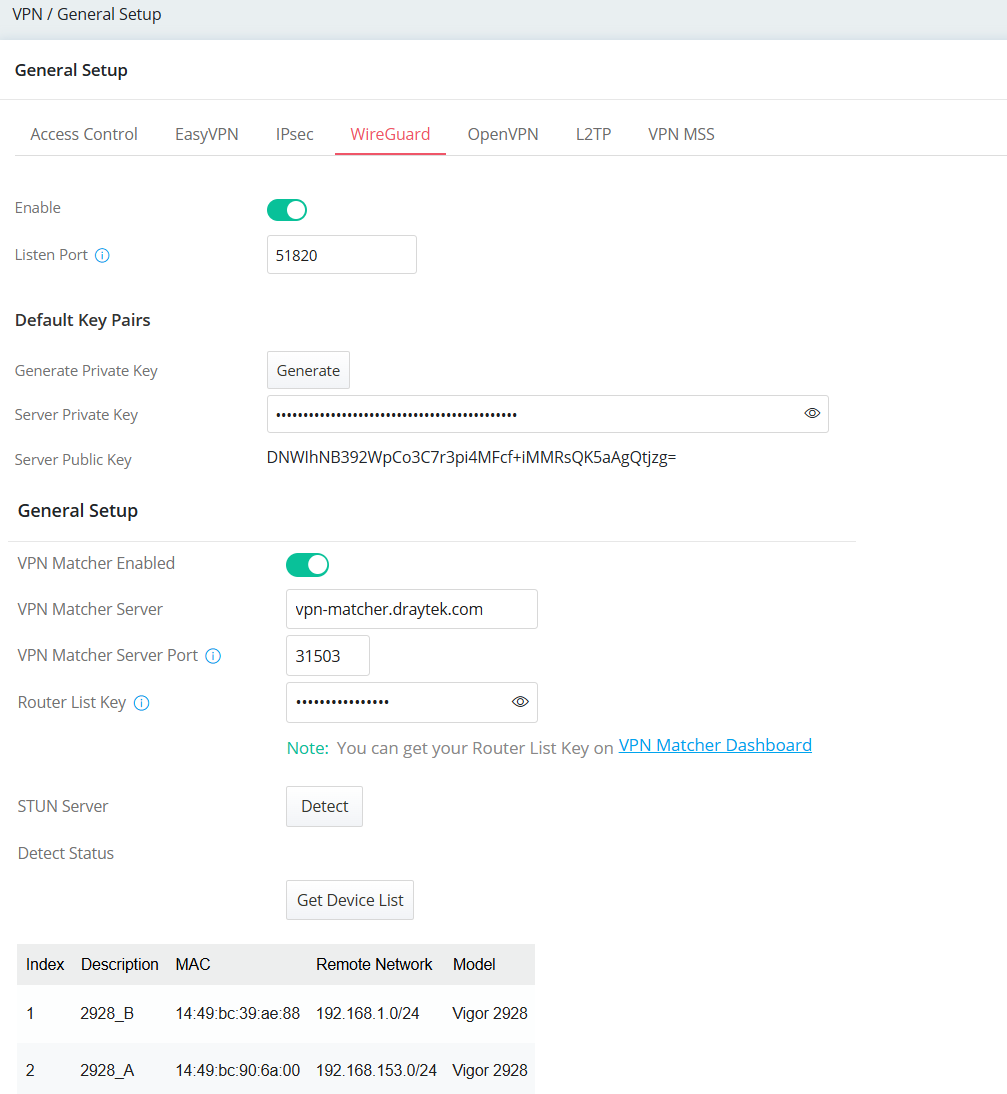
- Navigate to VPN / General Setup / WireGuard on each router
- Toggle Enable
- Click Generate to create the server Private key
- Toggle VPN Matcher Enabled
- Enter the VPN Matcher Server domain name and the used port
- Click Detect to check if the NAT device in front of the DrayTek router is friendly for VPN Matcher usage
- Click Get Device List to view all DrayTek devices bonded to the VPN Matcher user account
- Click Apply to save the settings
- Create VPN Site-to-Site Profiles on Both Routers
- Navigate to VPN / Site-to-Site VPN.
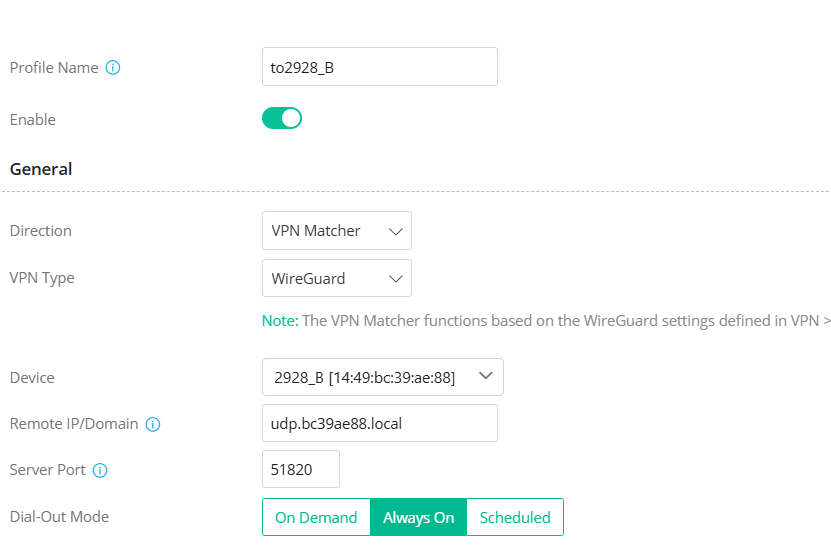
- In General area,
- Enter a Profile Name
- Toggle Enable
- Select VPN Matcher as Direction
- Select WireGuard as VPN Protocol
- Select the Peer Router as Device, then the Remote IP/ Domain Name will be filled out automatically.
- Select Always On as Dial-Out mode
- Both routers must be set to Always On to maintain connectivity with the VPN Matcher server and initial the VPN connection to each other.
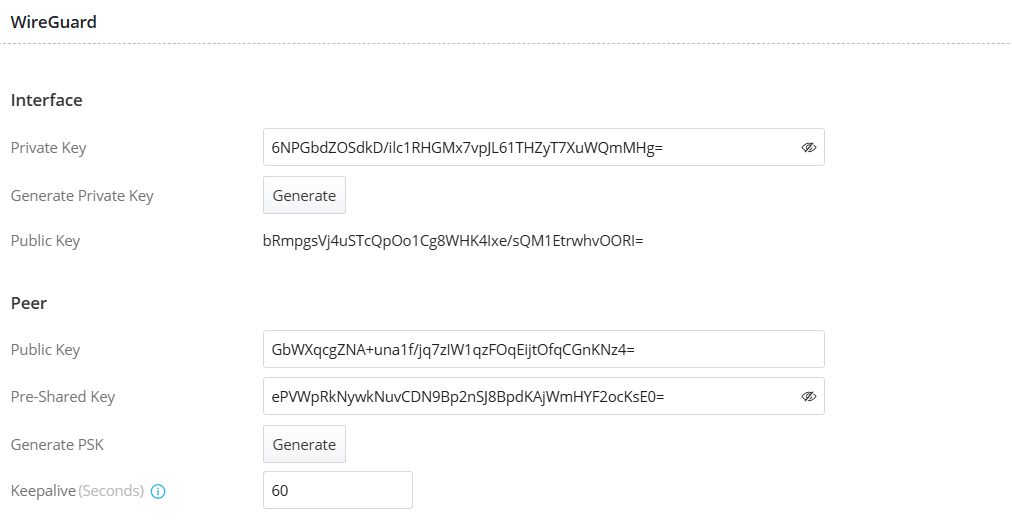
- In the WireGuard section:
- Click Generate to create the Private Key.
- Copy the Public Key and paste it into the Peer Public Key field on the peer router.
- Similarly, copy the Public Key from the peer router and paste it into the Peer Public Key field.
- Pre-Shared Key (optional):
- If enabled, both routers must use the same Pre-Shared Key.
- Generate it on one router and copy it to the peer router’s VPN profile.
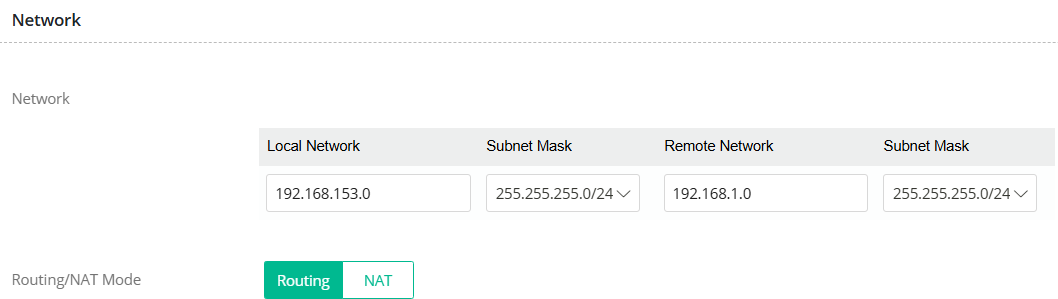
- In the Network section,
- Enter the Local Network, subnet mask, Remote Network and Remote Subnet Mask settings.
- Click Apply to save the configuration.
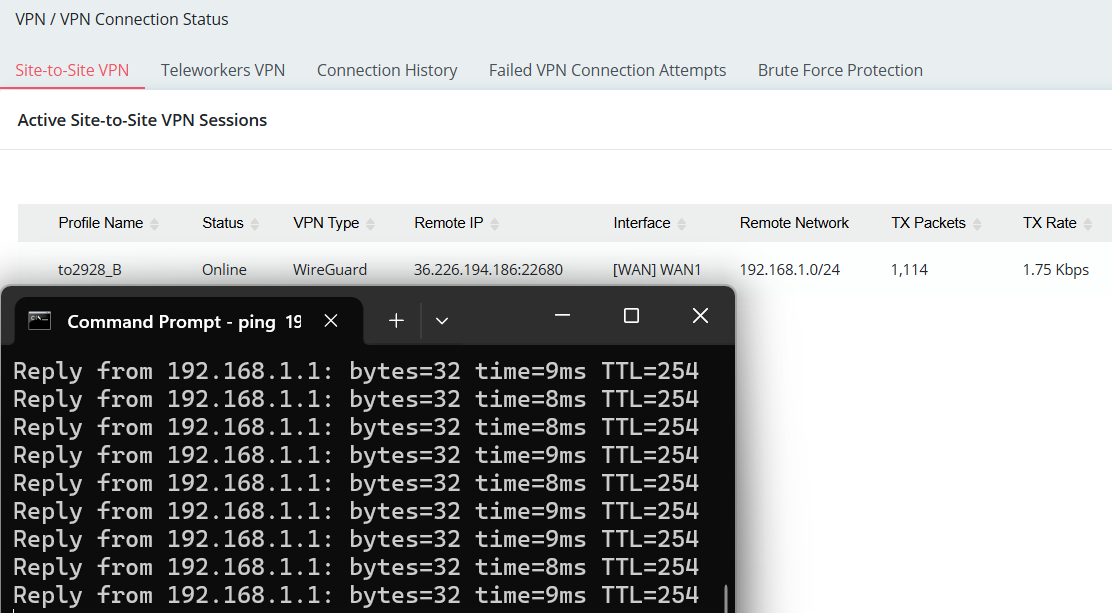
- Verify the VPN connection by going to VPN > VPN Connection Status.
- Confirm that the VPN status shows as Online, then use the ping function to ensure traffic is correctly routed through the VPN tunnel.
Troubleshooting Tips
- If the router cannot retrieve the device list
- Make sure the router can reach the VPN Matcher server.
- Verify that the VPN Matcher server domain name and port are correctly configured on the router.
- Confirm that the router has been properly added to the VPN Matcher user account on the server.
- If the VPN connection cannot be established
- Enable STUN under VPN → General Setup → WireGuard to check whether the environment is compatible with VPN Matcher.
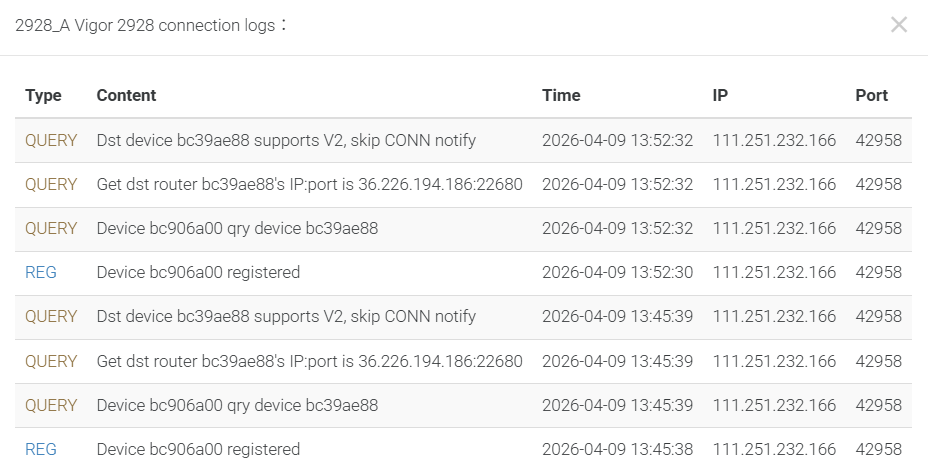
- Review the VPN Matcher server logs to ensure both routers are successfully registered.
- Verify the settings on both routers in the WireGuard Site-to-Site VPN profiles. Ensure the peer public key matches the remote router’s interface public key and confirm that the pre-shared key is identical on both ends.
- Check the VPN Syslog on each router for any WireGuard errors or BFP block messages.
- If any errors are detected, recheck that the WireGuard key configuration is correct on both routers.
- Also ensure the selected device is mapped to the correct peer router.
Note: DrayTek models Vigor2962, Vigor3910, and Vigor3912 running firmware version 4.4.6.1 or later support VPN Matcher connectivity with DrayOS 5 routers.
Add a comment to this article
NOTE : All comments are reviewed before publication and may not be posted or may be redacted if the editors do not consider them helpful. The use of offensive or obscene language, copyrighted material, or advertising or promotion or linking to any other product or service is prohibited. By submitting your comment, you confirm that you are the original author and assign copyright of the content to DrayTek indefinitely and irrevocably.
